The Accordion Block is a very useful block for FAQs, and other “click for more information” scenarios. Previously, we might have had to add a plugin or use a more sophisticated page builder to achieve this, but WordPress v6.9 introduces this block into the native WordPress editor.
Here is a simple example.
Here is the answer.
Multiple paragraphs can be included inside the Accordion Panel
Here is the answer to the second question.

And we can even include images or other blocks. Layout can be as complex as you need.
I find it a little tricky to add multiple questions. You need to use “finding your way around the block editor” tricks, such as breadcrumbs or document list view, in order to position the cursor in the right place to add a new accordion item.
Block Structure
The layout of the Accordion block within the WordPress editor is shown here, as it appears in the Accordion block content area in the sidebar. The block contains several Accordion Items, each of which includes a Heading and an Accordion Panel. The Accordion Panel can include any types of blocks.
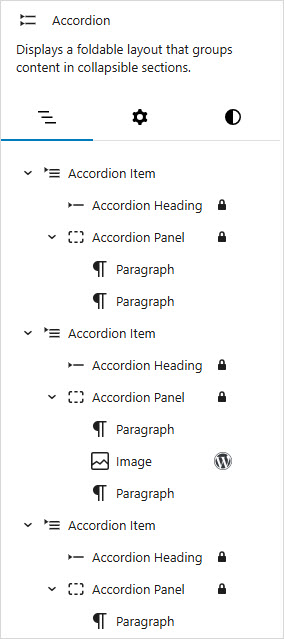
You can use this sidebar area to add or delete Accordion items, or to duplicate or drag them around to change the order.
Adding Accordion Items and Content
Take care to ensure that you are adding content where you want it to be.
- To add a new accordion item, make sure the overall accordion block is selected, then click the plus icon
 at the bottom.
 - To add further content within an accordion panel, make sure the accordion panel is selected, before clicking the icon.
- To add content after the accordion, make sure to click outside of the accordion block first.
Use the breadcrumbs at the bottom of the editor page, or the Accordion content area in the sidebar, in order to select the right block. See “finding your way around the block editor” for further help.
Adding and Styling the Accordion Block
Click  to add a new block. Then just search foraccordion.
Or find the Accordion block icon  in the Design group of blocks.
The accordion block is inserted into the editor and the first Accordion Heading and Accordion Panel content can be added easily.
Multiple paragraphs, even images or other blocks, can be included in the accordion panel section of content.
After the first accordion item has been added, be sure to position the cursor in the right place to add another accordion item.
Check the breadcrumbs at the bottom of the page, or use the Document Overview (click on the icon in the top left corner) and ensure the current block is the overall Accordion block (and not one of the blocks inside it). Then click on the  to add a new accordion item.
Simple style settings are available in the sidebar, such as text or background colour, font size or borders. These can be set for the accordion panel, accordion item or accordion block as a whole.
Site developers can use theme.json or theme styling to set default styling or alternative style options for the block.
Here is a great post on the WordPress Developer Blog about styling the accordion block.
Block Settings
Another method for adding simple “click to open” sections is the Details block.
However, the Accordion block is designed particularly for FAQs and other sections with multiple openable items. This block is particularly useful when you want behaviour such as “close one question when another is opened”.
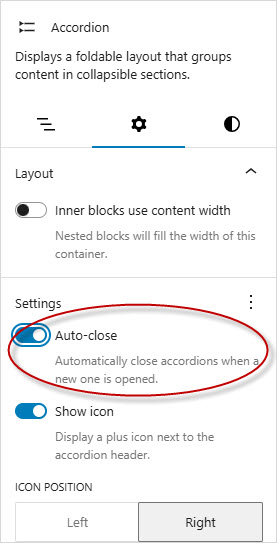
This Auto-close option is available in the block’s sidebar (at the overall Accordion block level). Note that the default setting is Off; set this to On to automatically close accordion items when a new one is opened.
Other options include showing an open/close icon for each accordion item and the positioning of this icon.
More Information
For alternative methods of adding clickable sections, see the Details Block.
For help in finding your way around the block editor, see Finding Your Way Around the Block Editor. See also Page Layout with the Block Editor.